Troubleshooting Common Issues
Solutions for the most common GuestTrack issues: QR code not scanning, no check-out record found, and guest details not saving on iOS.

The QR code won't scan
All iPhones and most Android phones come with a built-in QR Code reader in their camera app. Visitors can scan the QR code by opening up their smartphone's camera and placing it to focus on the QR code icon.
Some Android phones may not come with the QR code scanning functionality. In that case please suggest your guests to:
- Use the GuestTrack QR Code Scanner
- Download a QR code scanner app from the Google Play Store
You may also use an alternate method to check-in your guests:
- Log in to guests login by clicking on Settings > Manage QR Codes > Custom QR Codes > Click on the QR code icon
- Advise your guests to access the visitor form from their browser via the QR code link (which is available under Manage QR Code > Custom QR Codes > Click on the QR code icon)
- Turn your iPad/tablet into a check-in kiosk and let your guests enter details on the iPad
No check out record found
If your guests check-out via scanning the check-out QR code and it shows "No check out record found", it might be due to one of the following reasons:
- The user checks out with a different device or browser
- User's browser is in private mode when check-in or check-out
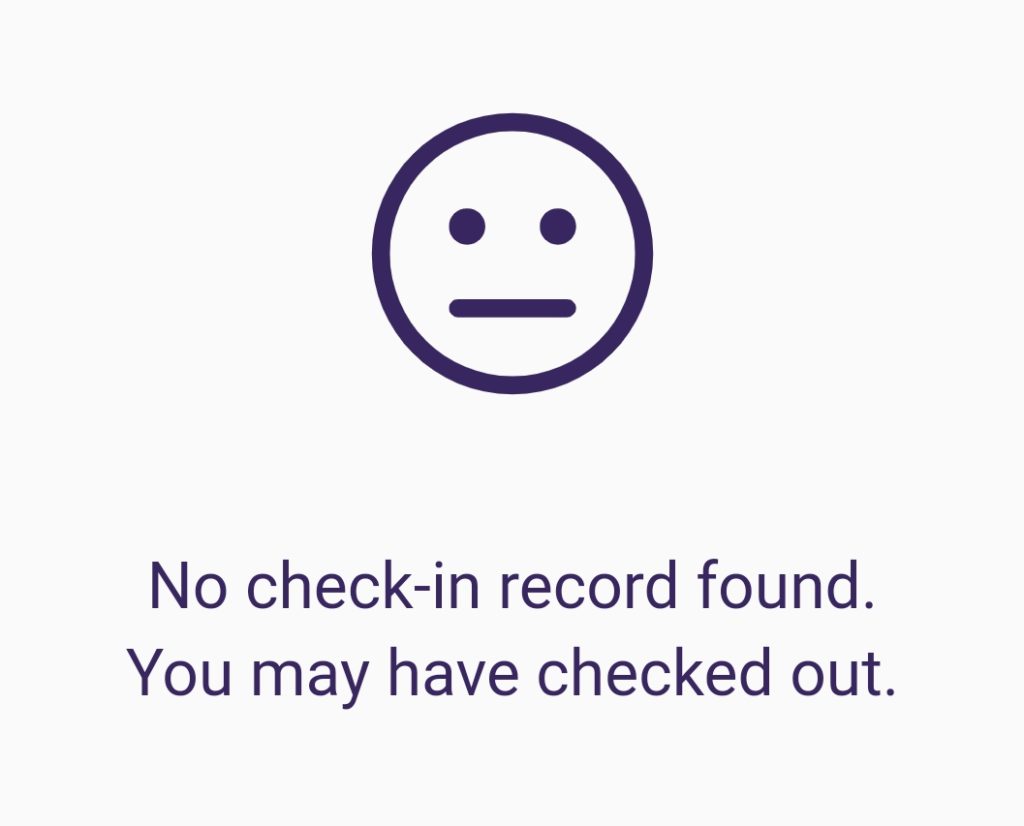
You may also suggest your guests to check out by clicking the Check Out button provided on the check-out screen or in the confirmation email.
Guest details are not saved for frequent guest on iOS device
iOS devices have 2 built-in QR Scan methods:
- Use the camera to read a QR code
- Open the Code Scanner from Control Center
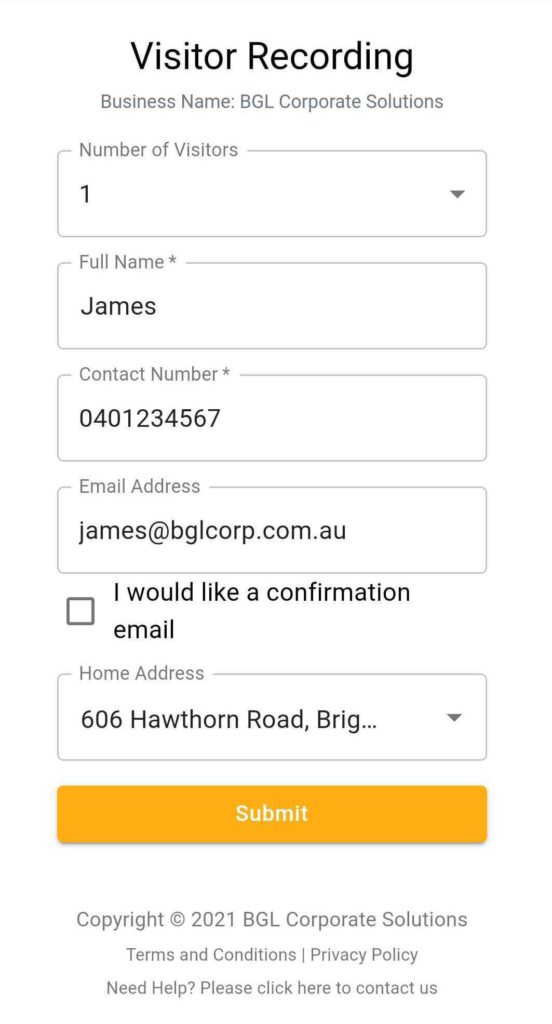
In order to remember user details, please use the camera to read QR code, this will bring the user to iOS built-in browser to finish the login process. After first time login, the iOS browser will remember user details, and prefill will be available next time.