Connect GuestTrack to Claude and ChatGPT
GuestTrack now has an MCP connector with OAuth sign-in. Ask Claude or ChatGPT who checked in, turn the answer into a report, and check visitors out, with your approval before anything changes.
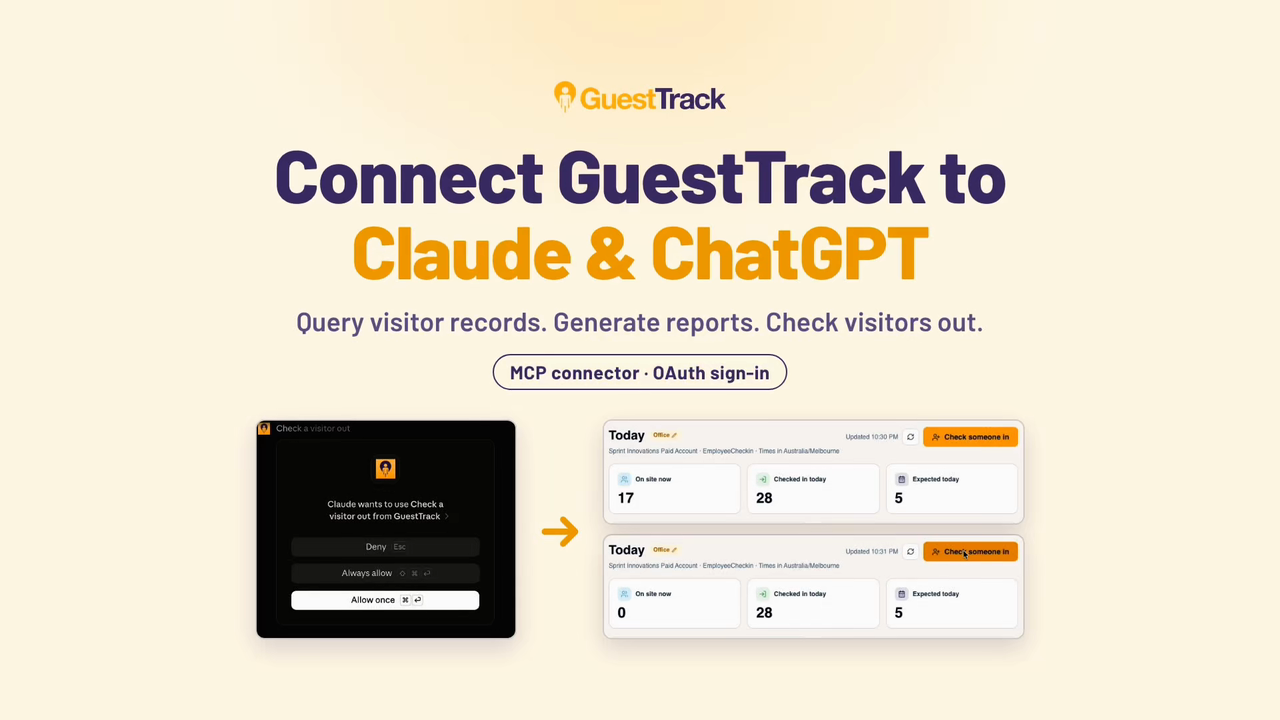
You can now connect GuestTrack to Claude and ChatGPT. Once it's connected, you ask about your visitors in plain English and the assistant reads your GuestTrack records to answer. It can also check visitors in, pre-register them and check them out for you.
Short on time? Watch the 30-second version.
What you can ask
- Query visitor records. "Who checked in this week?" "Was Sam on site on Thursday?" "How many people came through the front door QR code yesterday?"
- Generate reports. Ask for a daily summary, or have the assistant turn its answer into a spreadsheet you can download.
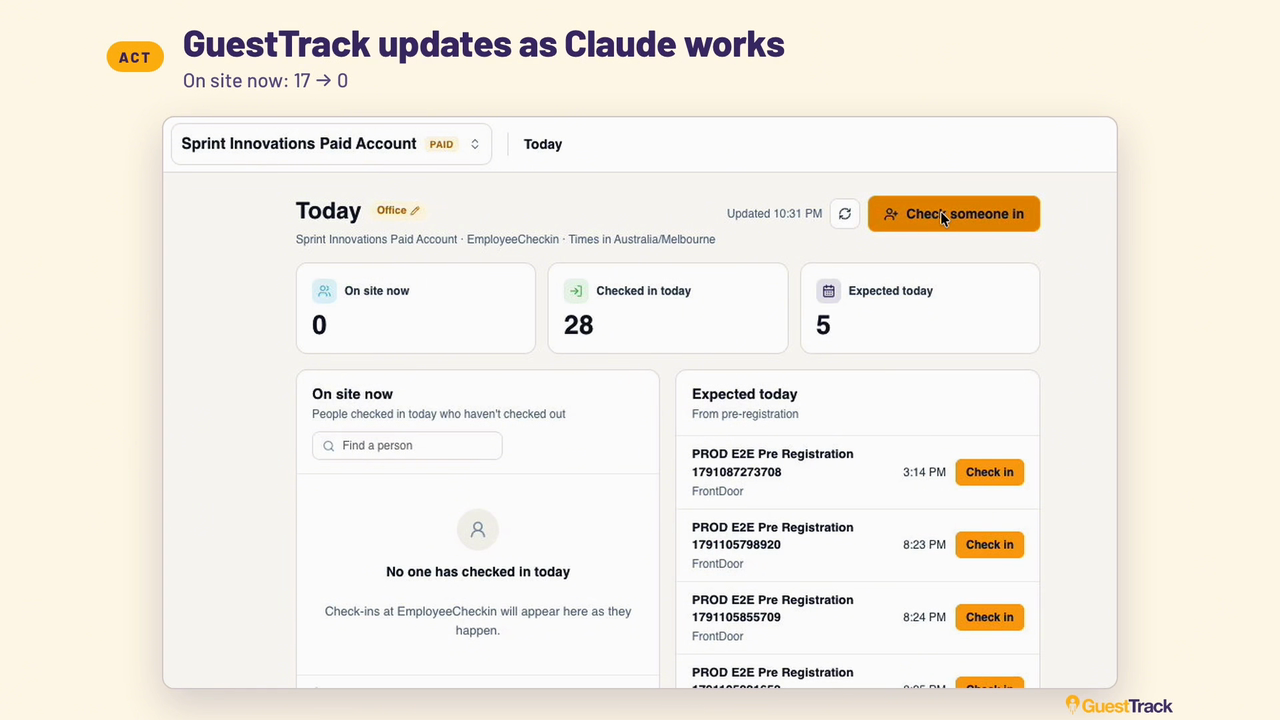
- Check visitors out. "Check out all visits for today." In the demo, the Today page goes from 17 people on site to 0 while Claude works.
- Check in and pre-register. "Pre-register Priya for 2pm tomorrow at Front Door."
You approve what it can do
The connector uses OAuth, so you never give the assistant your GuestTrack password. You sign in on GuestTrack's own page, and it tells you exactly what the assistant will be able to do before you click Allow.
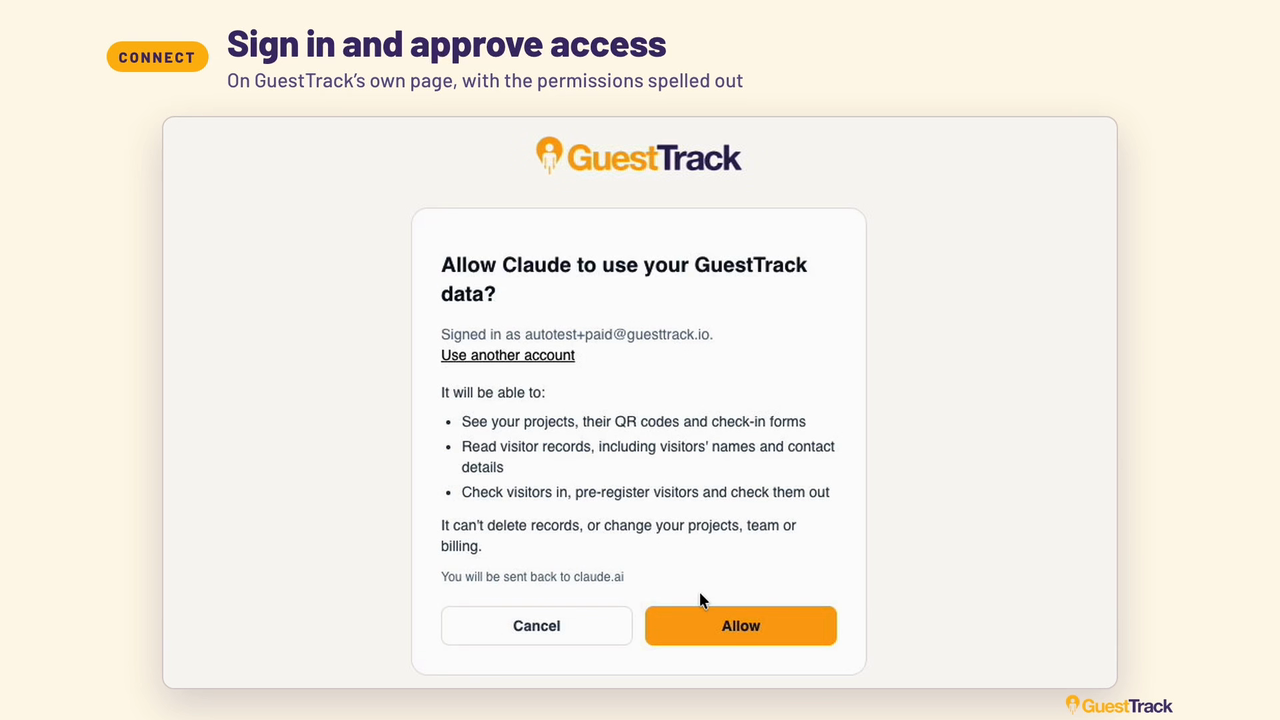
The assistant can:
- see your projects, their QR codes and check-in forms
- read visitor records, including visitors' names and contact details
- check visitors in, pre-register visitors and check them out
It can't delete records, and it can't change your projects, team or billing. It only sees the projects your own GuestTrack role lets you see, and if you're removed from a project the assistant loses access to it straight away.
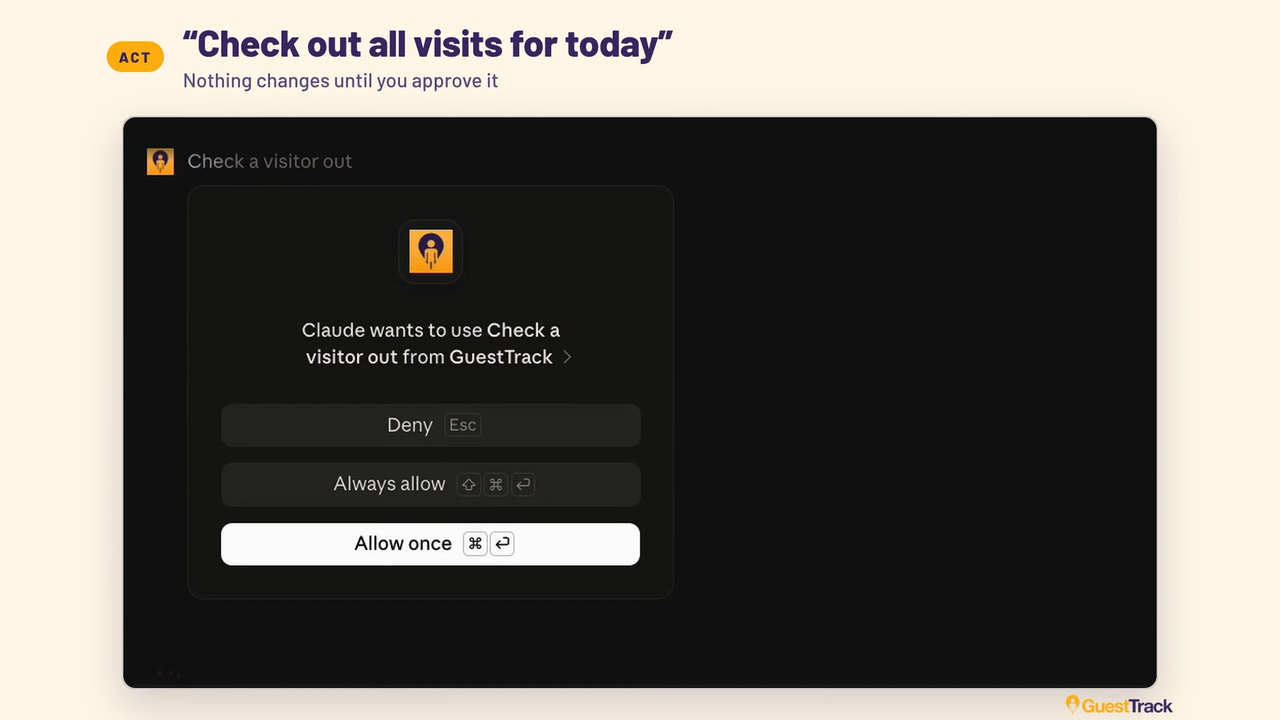
Claude and ChatGPT also ask before they change anything. When you ask for a check-out, you'll see the request and approve it first.
How to connect
In Claude, open Customize, then Connectors, search for GuestTrack and click +. GuestTrack is in Claude's connector directory, so there is nothing to paste.
In ChatGPT, open Plugins, search for GuestTrack and click Install plugin. Since 22 October 2026 GuestTrack is in ChatGPT's plugins too.
Every other assistant uses GuestTrack's MCP server address:
https://api.guesttrack.io/mcp
The AI assistants page has the steps for Claude, ChatGPT, Copilot, Cursor and any other tool that supports MCP, and is kept up to date.
Good to know
- Check-ins the assistant adds count towards your plan's monthly check-ins, the same as any other check-in.
- Visitors aren't sent a confirmation SMS or email for a check-in added by an assistant.
- To stop an assistant using GuestTrack, disconnect GuestTrack in that assistant's connector settings.
- Building your own integration instead? See the GuestTrack API.