Student sign-in and out, with safe dismissal built in
Know who collected every child, and stop anyone on a must-not-collect list at the office. Record late arrivals with the reason and a late pass, scan the student cards you already have, and keep volunteers with an expired Working with Children Check out. Visitors and contractors sign in on the same system.
A school day at the front office
- 8:20 amStudents arriveThe office scans the barcode on their student card, or they hold up their own QR code. Parents are told.
- 9:07 amA late arrivalThe office taps why, prints a late pass, and the parents’ message gives the reason.
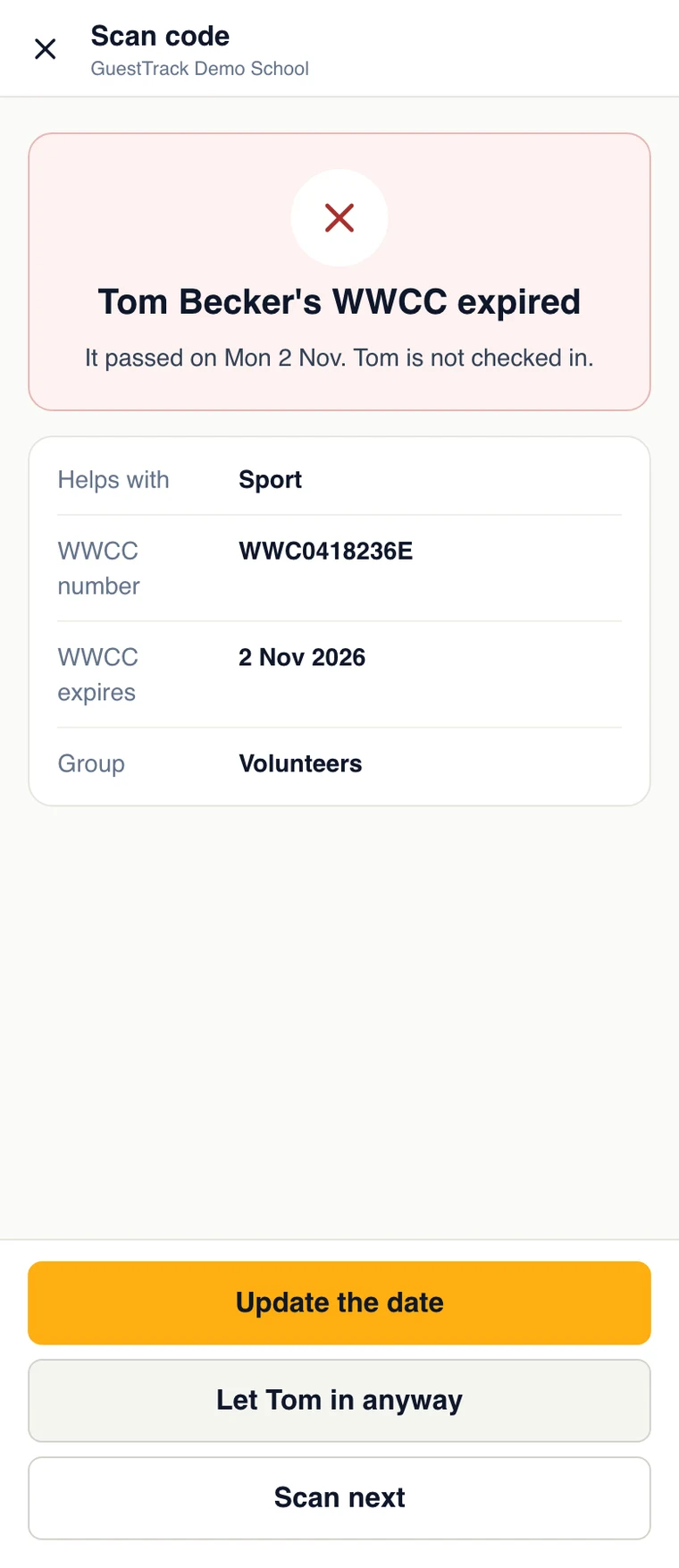
- 10:30 amA volunteer’s WWCC has run outThey are stopped at the door until the office updates the date.
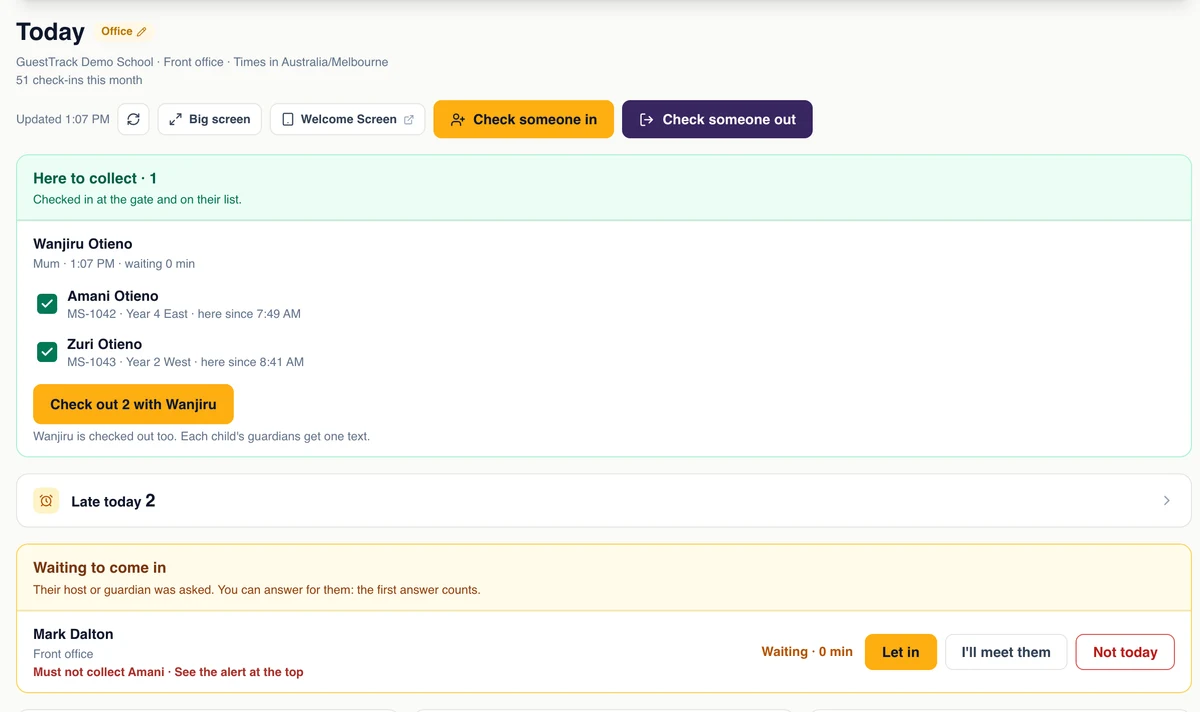
- 1:05 pmSomeone who must not collectToday turns red. The child stays with staff and the parents are told.
- 1:12 pmAn early pick-upWhy they leave and who takes them, on one screen.
- 3:10 pmThe bellA parent at the gate signs out all three of their children in one tap.
Know who collected every child, and sign out brothers and sisters together
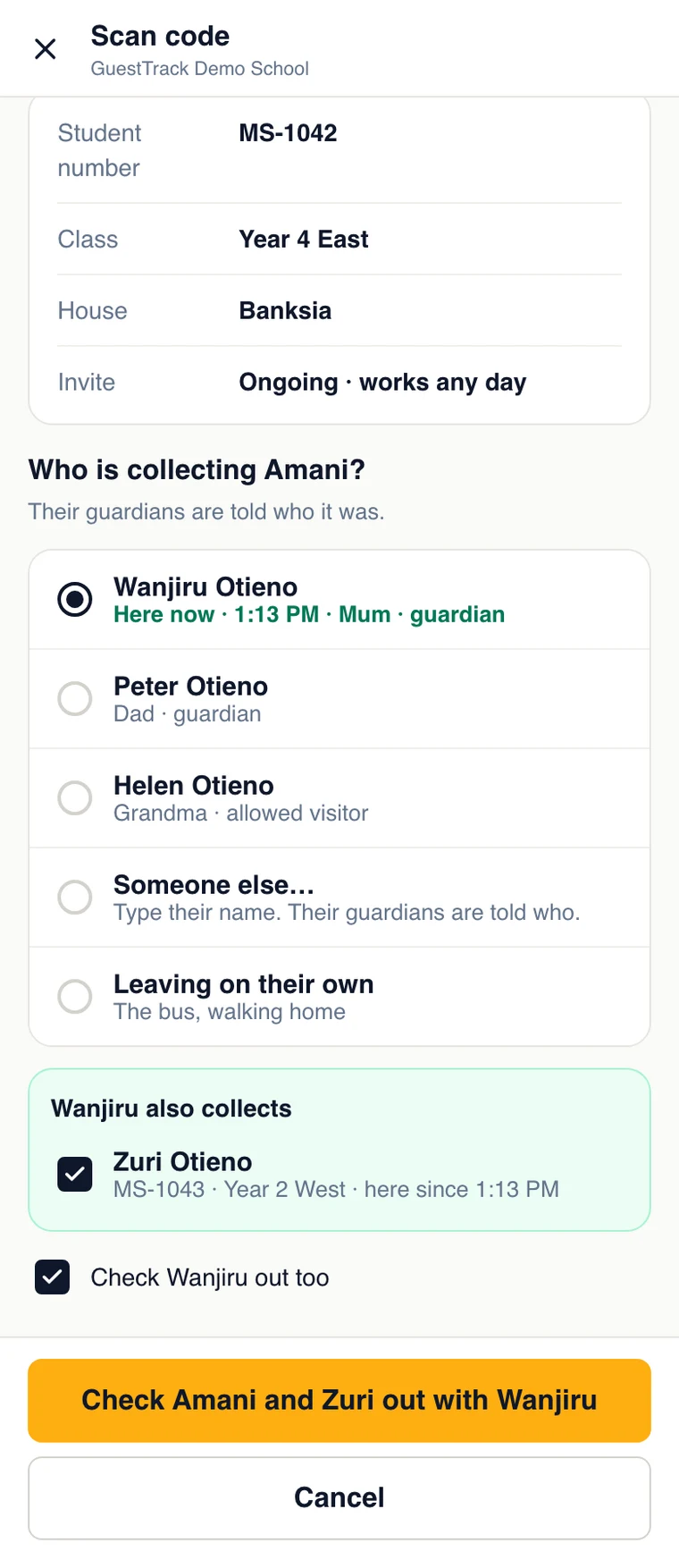
When a student signs out, GuestTrack asks who is taking them. The parent who signed in at the gate is first on the list, then the student’s guardians and the people they may go with, someone else by name, or leaving on their own for the bus. If that parent can also take a brother or sister who is here, they are ticked too, and one tap signs them all out. A parent who signs in at the gate shows on Today under “Here to collect”, with their children who are still in.
- Guardians are told who took their child: “with Sarah Otieno (mother)”
- “Collected by” on every record, in Visitor Records and the export
- The same question in the GuestTrack app on iPhone, iPad and Android
Stop anyone on a must-not-collect list at the office
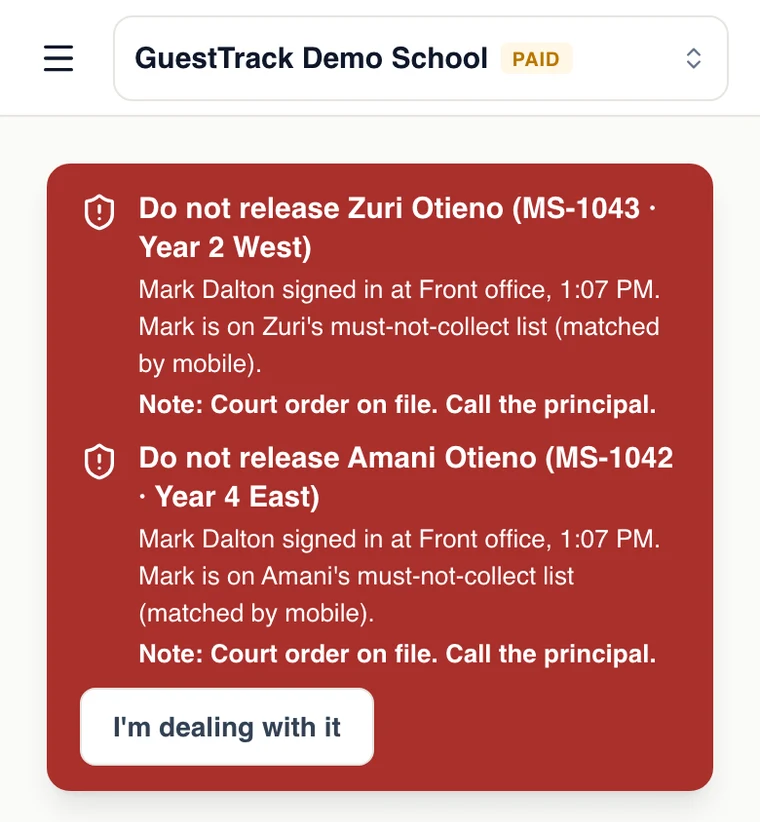
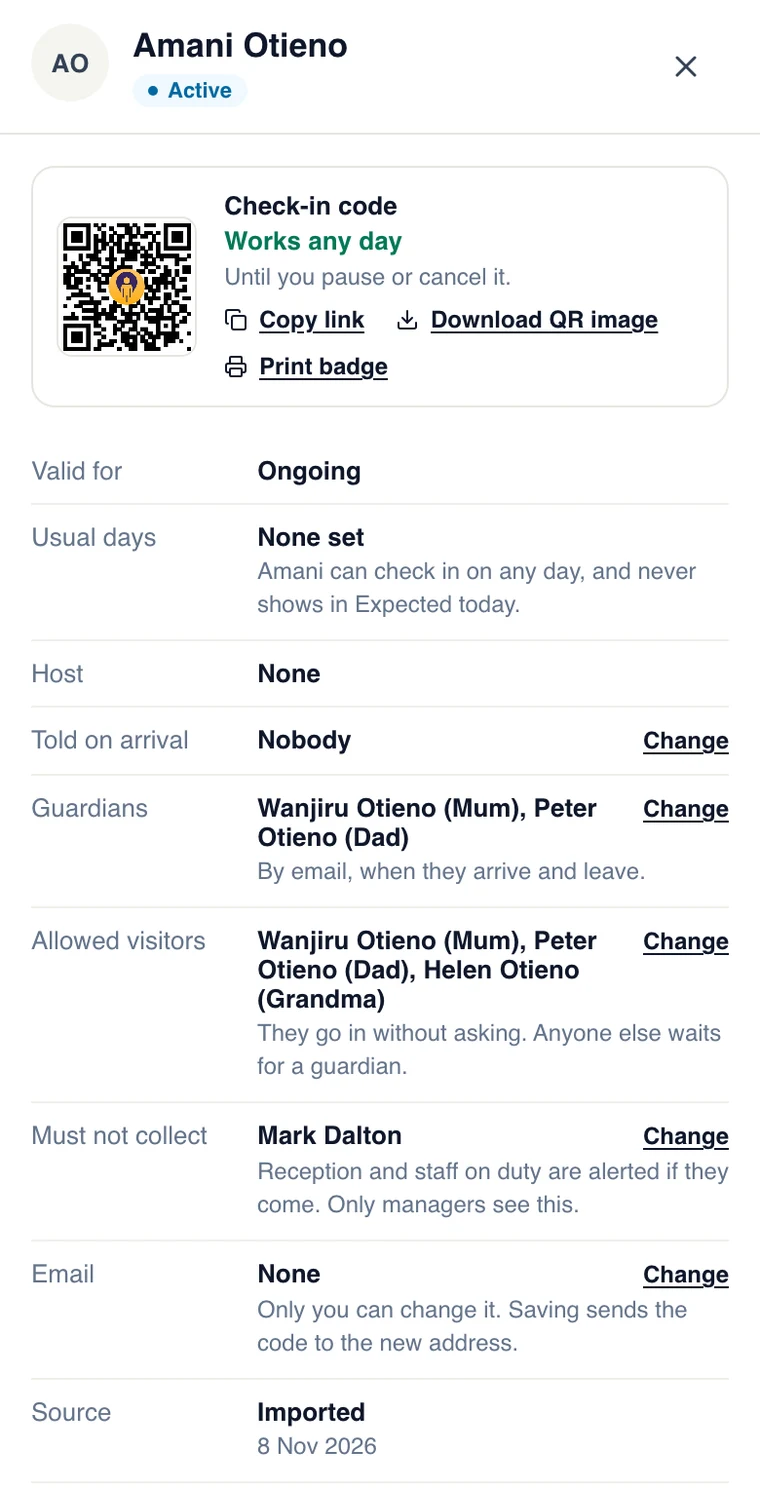
Keep up to ten people per student who must not take them, such as a parent under a court order, with a mobile or ID number and a note for staff. If one of them signs in at the office, whoever they say they came for, they wait. Today pins a red alert to the top with a chime, “Do not release Amani”, until someone taps “I’m dealing with it”. Choosing them at sign-out is refused.
- Matched by name, and by mobile or ID number
- The student’s guardians are texted, and the message never names the person
- Only managers see the list; the office sees the alert and the note
- Staff on duty get a push on the GuestTrack app on iPhone, iPad and Android
The late book, without the book
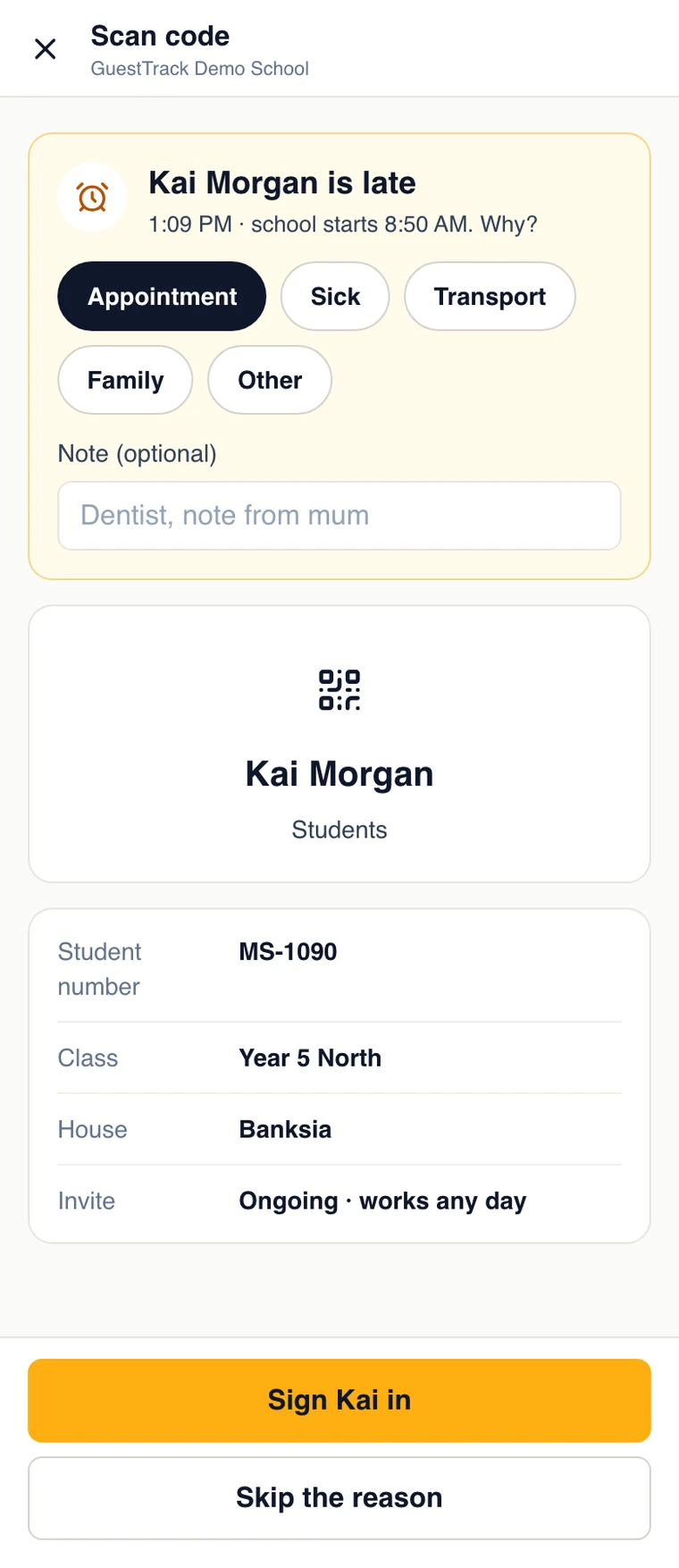
Set when the school day starts and ends. A student signed in after the bell is asked why, with one tap: Appointment, Sick, Transport, Family or reasons of your own, and a note if you like. Print a late pass for the teacher on your label printer or on A4. Leaving early asks the same, together with who is collecting them. On time asks nothing.
- Parents’ messages say “late: Appointment” or “left early: Sick”
- “Late today” on Today, with the list
- A Late / Early filter in Visitor Records, and the reason in the export
- The same reasons in the GuestTrack app on iPhone, iPad and Android
Scan the student cards you already have
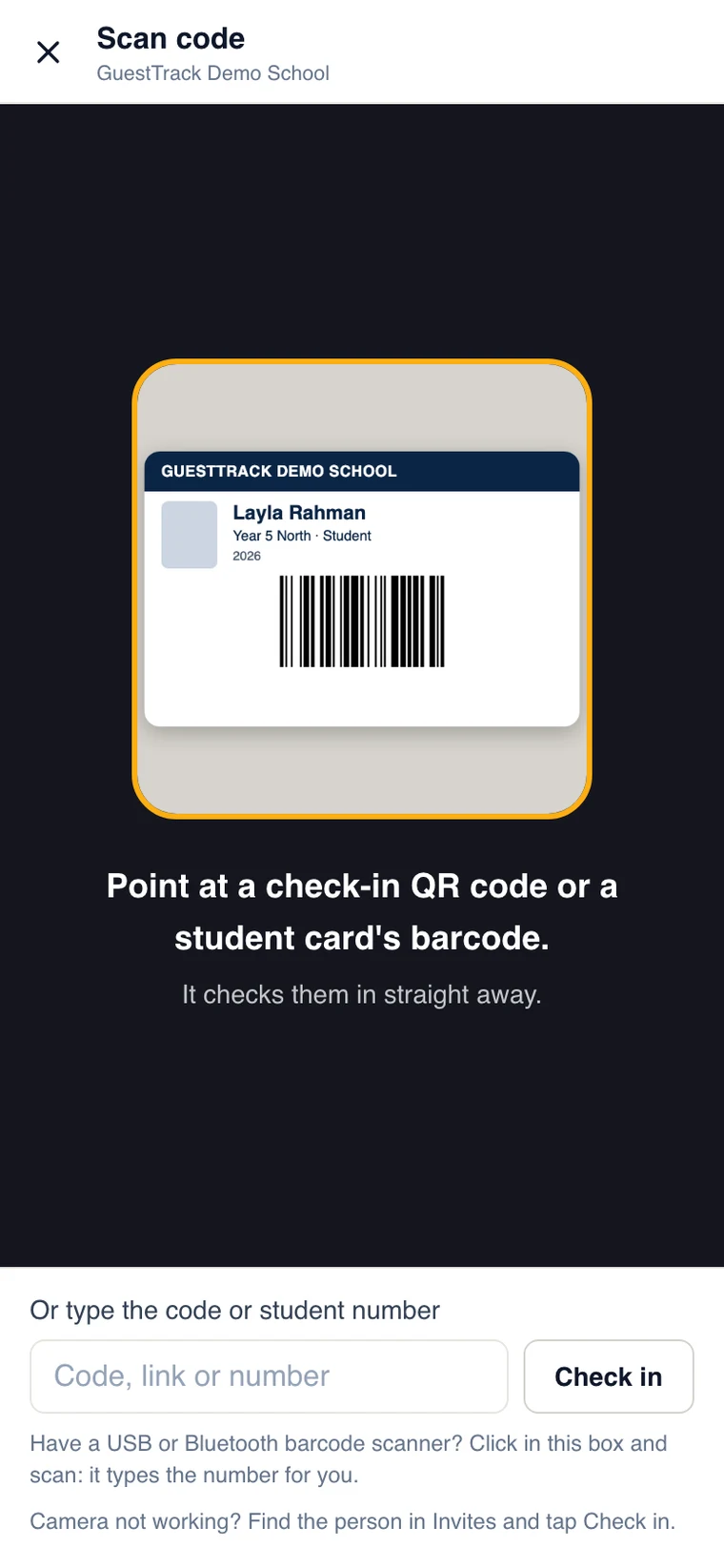
Open Scan code on the office iPad or a staff phone, in the browser or the GuestTrack app, hold up a student card, and GuestTrack reads its barcode and finds the student by their number. A USB or Bluetooth barcode scanner works too: it types the number for you. Students without a card hold up their own QR code, on paper or in Apple or Google Wallet, or the office types their student number.
- Code 128 and Code 39 barcodes, the kind most student cards carry
- No new cards to print, and nothing to install
- Each parent told when their child arrives and leaves
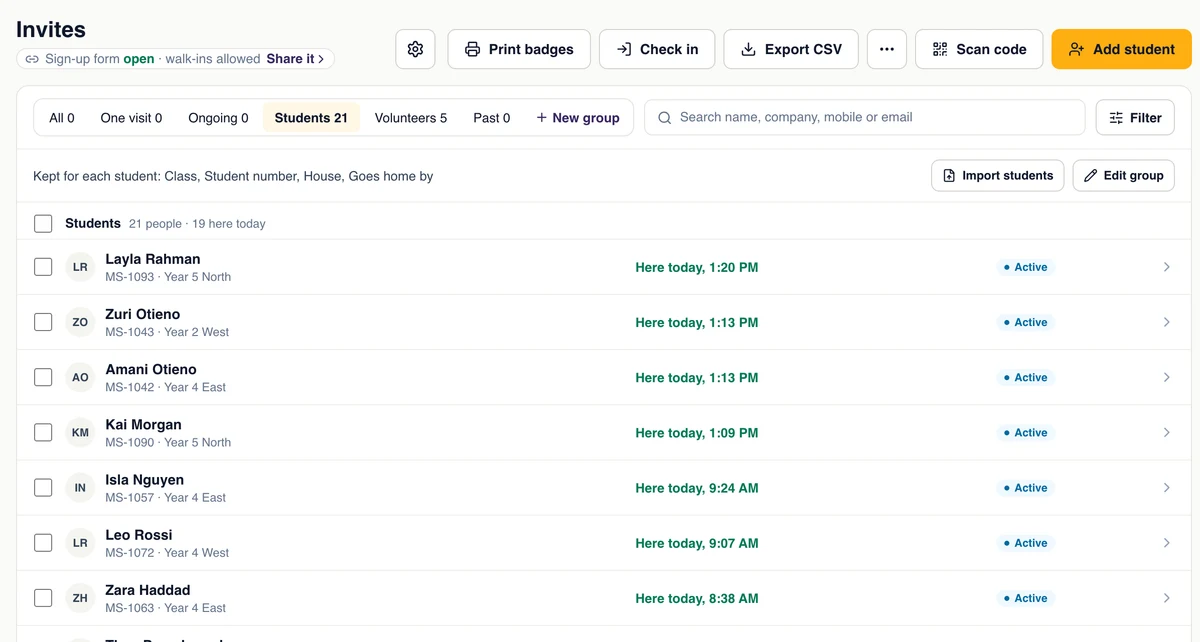
Your student list, with parents and who may collect them
Each student keeps their class, student number and the details your school keeps, such as house or how they go home, with up to four guardians and the people allowed to collect them. Import the whole school from a spreadsheet exported from your school system. Anyone not on a student’s list waits at the office while the parents get a text asking whether to let them in.
- Parents answer from the text, with no app
- Your own details, in your school’s words
- Find any student by name or number
An expired Working with Children Check stops at the door
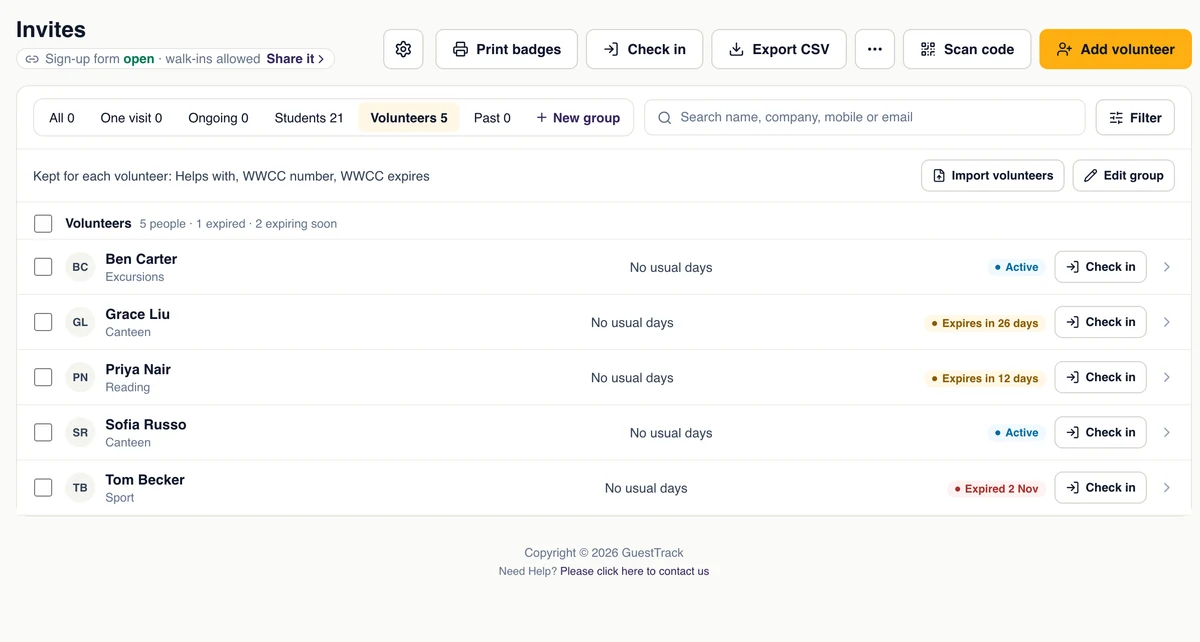
Keep volunteers, contractors and relief teachers in their own lists, with their WWCC, police check or insurance and its expiry date. GuestTrack emails them (when you have their email) and your managers 30 and 7 days before it runs out. Once it has passed, scanning them in shows “Tom Becker’s WWCC expired” with “Update the date” and “Let Tom in anyway”, which records who let them in. Their own code and the Welcome Screen just say “Please see reception”.
- “Expired 2 Nov” and “Expires in 12 days” on the list
- Stopped at Scan code in the GuestTrack app too
- GuestTrack goes by the date you keep; it doesn’t check registers online
Every visitor signed in, badged and sent to the right teacher
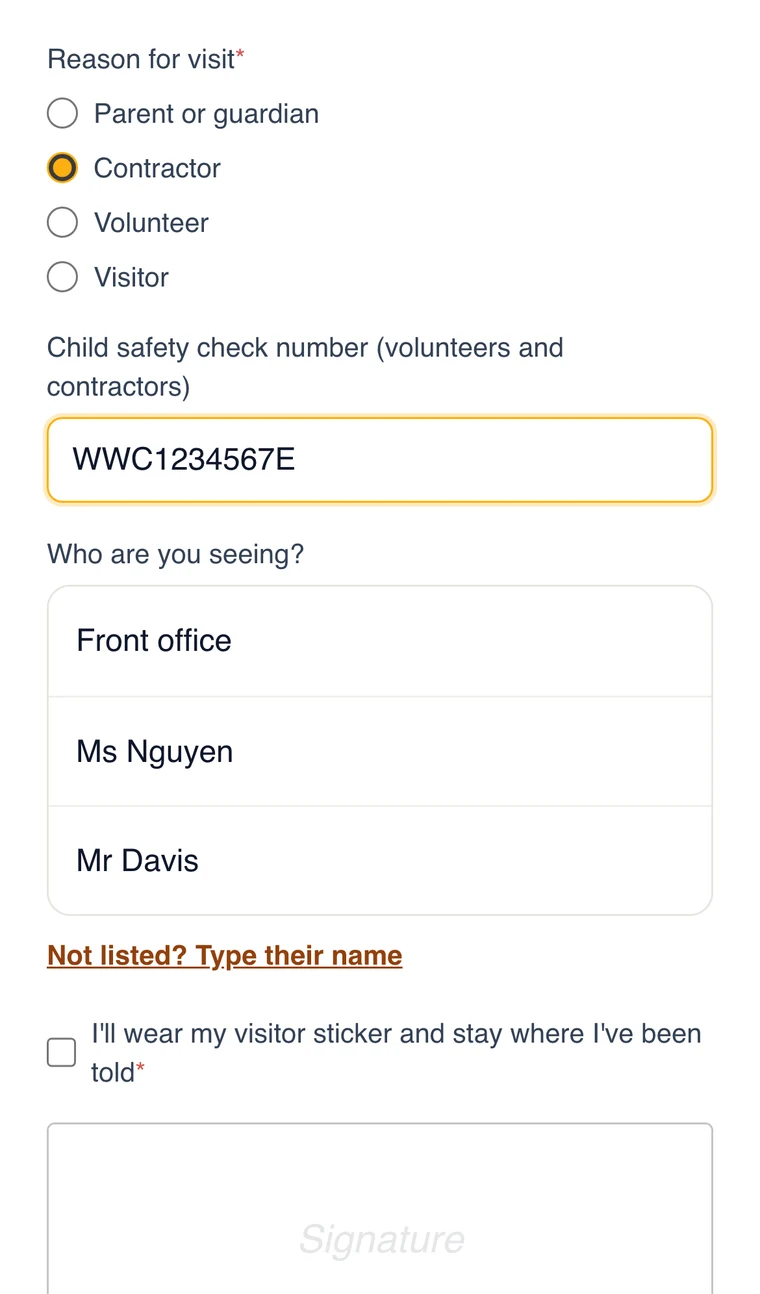
Visitors scan the QR code at the office door, or sign in on the iPad at the counter. They say why they are here and who they are seeing, agree to your visitor rules and get a printed badge. The teacher is told by email, Slack, Teams or text.
- Parent, contractor, volunteer or visitor
- A badge from your label printer
- On the same Today as your students
Know the gate is covered, all day
If your school has a guard at the gate, they check in for their shift with the GuestTrack Check In app at the gate itself. While they are on shift you see the whole shift: every time they stepped away from the post and for how long, and when the phone stopped sharing its location. The guard sees they are on shift the whole time; nothing is hidden from them.
- Check-in at the post, proved by location
- Time at the post, time away, no location, on a map
- The guard can check students and visitors in from the GuestTrack app
Know who is on site when the alarm goes
Today lists every student, visitor and contractor signed in and not yet out, on any phone, so the list goes with you to the assembly area. At the end of the day the principal can get the day’s sign-ins by email, and every record is kept as long as you choose.
- Who is on site, on any phone
- The day’s report emailed at a time you choose
- Records exported in seconds
Questions schools ask
- Do we need to buy kiosks, scanners or new cards?
- No. Any iPad or Android tablet at the office, or a staff phone, reads the Code 128 or Code 39 barcode on the student cards you already have with its camera. A USB or Bluetooth barcode scanner works too. Students without a card use a QR code on paper or in Apple or Google Wallet, or their student number. Visitors use their own phone.
- How do we know who collected a child?
- Signing a student out asks who is taking them: the parent who signed in at the gate, a guardian, someone on their list, someone else by name, or nobody (the bus, walking home). Brothers and sisters leaving with the same person are signed out together. The guardians’ message says who it was, and every record has a “Collected by” column in Visitor Records and the export.
- What happens when someone on a must-not-collect list arrives?
- They are matched by name, and by mobile or ID number. They wait at the office, Today shows a red “Do not release” alert with a chime until a staff member says they are dealing with it, and the student’s guardians get a text that never names the person. If anyone tries to choose them at sign-out, it is refused. Only managers can see or change the list.
- How are late arrivals and early leavers recorded?
- You set when the school day starts and ends. Signing a student in after the start, or out before the end, asks for a reason with one tap (your own reasons or ours) and an optional note. A late pass prints on a label printer or A4. The reason goes in the parents’ message, Today counts who was late, and Visitor Records filters and exports late and early.
- Can GuestTrack track Working with Children Check expiry dates?
- Yes. Keep the expiry date with each volunteer or contractor. GuestTrack emails them (when you have their email) and your managers 30 and 7 days before it passes. After it passes, they are stopped at sign-in until the office updates the date or lets them in anyway, which is recorded. GuestTrack goes by the date you keep and doesn’t check the register for you.
- How are parents told?
- By email, and by text once you connect your own SMS account (Twilio, Africa’s Talking, Celcom Africa or another provider). For each parent you choose arrival, leaving or both. Messages say who collected the child and why they were late or left early. Letting someone in who is not on a student’s list takes one text: the parent taps the link and answers.
- Does it work with our school system?
- Import students and parents from a spreadsheet exported from your school system, and export the records whenever you need them. Webhooks and an API are there for anything more.
- Where is our students’ data kept?
- In the AWS Sydney Region, encrypted in transit and at rest, and only the staff you give access to can see it. Each staff member gets their own role: check-in staff, records viewer, project manager or administrator.
- Can we run several campuses?
- Yes. One organisation holds every campus, each with its own students, check-in points and Today, under one login and one bill.
Made for a school office
An iPad at the office
The Welcome Screen signs visitors in, scans passes and prints badges.
The cards you have
Student card barcodes, read by the camera or a USB or Bluetooth scanner.
Your own SMS
Texts go through your own provider, under your school’s name.
Roles for your staff
The office checks people in; only the people you choose see records.
Several campuses
One organisation, one login, each campus set up its own way.
Kept private
Students’ details are encrypted, and kept as long as you choose.
Set up your school in an afternoon
Start a 14-day free trial, import your students and parents, and scan the cards they already carry. Student lists, pick-ups, late passes and expiry dates are on the Growth and Portfolio plans.